
Monthly donations: set up, what donors see, and managing them
What it does and who it's for
Monthly donations let your donors give a set amount every month, by card, from the same donation page they already use. They choose Monthly instead of One-time, pick an amount and enter their card details once. The payment is then taken again each month.
Who it's for: charity staff with Editor or Administrator access who run QR + Card Reader, Community or Silent Auction campaigns and want to offer regular giving.
Where it works: monthly donations work on QR + Card Reader campaigns, Community campaigns and Silent Auction donations. This guide shows how to set it up on QR + Card Reader campaigns. To set up monthly donations on Community or Silent Auction, contact support at support@givetap.co.uk.
Turn on monthly donations
- Go to QR + Card Reader > Campaigns in the side menu.
- Click EDIT on the campaign you want to change. For a new campaign, click Create Campaign instead.
- Open the DONATION section.
- Switch on Enable monthly recurring donations. The help text says "Lets donors set up a monthly recurring donation to this campaign."
- Click Save updated campaign (or Create campaign for a new one). You'll see a Success message.

After saving, open the campaign again and check the switch is still on. If you're new to campaigns, see Creating a QR + Card Reader Campaign.
Choose your suggested monthly amounts
When you switch on monthly donations, a Suggested monthly amounts (£) row appears with four boxes. They start as £10, £25, £50 and £100.
- Type the amounts you want in each of the four boxes.
- Click Save updated campaign.
Your monthly amounts are separate from your one-off quick donation amounts. Donors see the first monthly amount selected by default, and can choose Other to type their own.
What your donors see
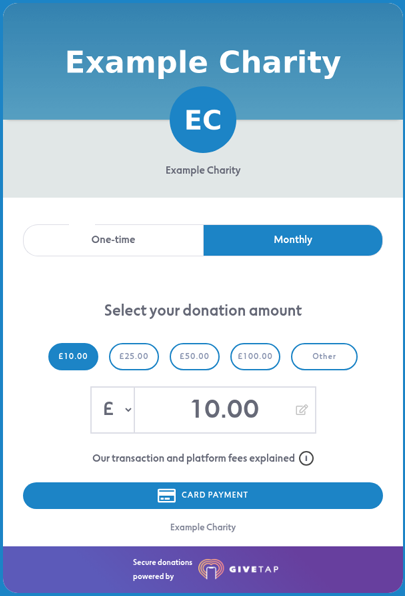
- At the top of the donation page there's a One-time / Monthly switch. One-time is selected by default.
-
When the donor taps Monthly, they see your suggested monthly amounts and Other. The first amount is already selected. They tap CARD PAYMENT.
- They complete a quick "I'm not a robot" check.
-
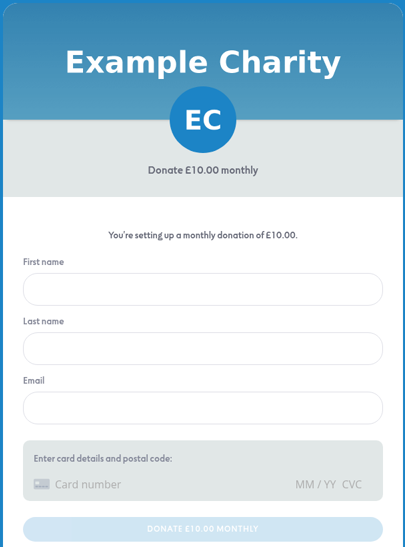
The next page says, for example, Donate £10.00 monthly and "You're setting up a monthly donation of £10.00." The donor enters their first name, last name, email and card details, then taps DONATE £10.00 MONTHLY.
-
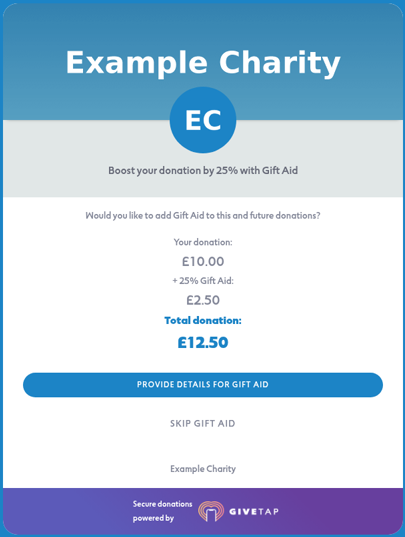
If Gift Aid is on for the campaign, they see Boost your donation by 25% with Gift Aid. They can choose PROVIDE DETAILS FOR GIFT AID or SKIP GIFT AID.
- Finally they see your thank-you page, with EMAIL RECEIPT and VISIT OUR WEBSITE buttons.
Good to know: one-off donors aren't asked for their name or email on the card page. Monthly donors are, so you know who has set up a regular gift.
See and manage monthly donors
Go to Recurring Donations in the side menu.

Filters and search
- Status: All statuses, Active or Cancelled.
- Campaign type: All campaign types, Community, QR + Card Reader or Silent Auction. Monthly gifts from all three campaign types appear on this page.
- Search by name or email to find one donor.
- Per page: show 25, 50 or 100 rows.
What each column shows
- Donor name and Email
- Campaign and Campaign type
- Subscription ID: the payment reference for this monthly gift
- Amount: the monthly amount
- Total Paid: how much this donor has given so far through this monthly gift
- Next: the date of the next payment. For example, a gift set up on 25 October shows 25 November.
- Status: Active or Cancelled
- Created on: when the donor set it up
- Action: a Cancel subscription button on active gifts
There's no export button on this page. For payment data, see Reports: Export Your Data.
Cancelling a monthly donation for a donor
If a donor asks you to stop their monthly gift:
- Go to Recurring Donations.
- Search for the donor by name or email.
- Check it's the right campaign and amount.
- Click Cancel subscription on their row.
- The gift should then show as Cancelled. You can find it again by setting the Status filter to Cancelled.
Cancelling only stops future payments. Nothing already paid is refunded.
Refunding a past payment: refunds are done in Stripe. See Refunding a Transaction.
Donors can manage their own gift: every donor can cancel or change their monthly gift themselves, using the cancel / amend link in their GiveTap emails. If a donor asks you to do it for them, use the steps above.
Troubleshooting
Donors don't see the Monthly option
Open the campaign, click EDIT, open DONATION, check Enable monthly recurring donations is on, and click Save updated campaign. Then reload the donation page.
The monthly amounts aren't what I set
Check the four Suggested monthly amounts (£) boxes in EDIT > DONATION and save again.
I can't find a donor in Recurring Donations
Set Status to All statuses and Campaign type to All campaign types, then search by name or email again.
A donor's monthly payment failed
GiveTap retries the payment automatically and asks the donor to update their card details. If you have questions about a failed payment, contact support.
Questions about Gift Aid or fee cover on monthly gifts
Contact support.