
Hiring or buying a card reader, and setting up an S700 or S710
What this guide covers
How to hire or buy a card reader from GiveTap, and how to get a Stripe S700 or S710 taking donations.
Who it's for: charity staff who want a card reader for an event, an appeal or a fixed giving point.
For the reader specs, the dock and offline mode, see Stripe S700 & S710 Terminals. If you'd rather use phones with no reader, see Tap to Pay.
Hire or buy?
| Hire | Buy | |
|---|---|---|
| Readers | Stripe S710/S700 or BBPOS WisePad 3 | Stripe S700 or S710 |
| Price | S710/S700: £25+VAT per device per week
WisePad 3: £10+VAT per device per week |
S700/S710: £229+VAT
Optional dock: £39+VAT |
| Return postage | You pay (Royal Mail 1st Class Signed For) | Not needed |
| Best for | One-off events, pop-ups and short appeals | Regular use, such as a giving point all year |
| How to get one | Fill in our rental form | Order through the Terminal section of your Stripe account |
Hire is only available to GiveTap clients.
Fees when you take donations on a reader:
- Stripe: 1.4% + 10p per payment
- Square: 1.75% per payment
- GiveTap platform fee: 2.5% + VAT on top
How to hire a reader
- Go to www.givetap.co.uk/card-reader-rental.
- Fill in the Request a Rental form: charity name, your name, contact email, phone (optional), rental start date, rental end date, number of readers, delivery address and a short description of your event or appeal.
- Send the form.
- We'll get back to you to confirm availability and delivery.
Leave enough time before your event for delivery and a test donation.
How to buy a reader
- Log in to your Stripe account.
- Go to the Terminal section, then visit the store and order your reader (and dock, if you want one).
If you hired a reader
Hired S700 and S710 readers arrive fully charged, already linked to your GiveTap account, with the GiveTap Payments app installed and ready to use.
- Switch the reader on.
- Check it's on the right campaign. To change it, go to Settings > Switch Campaign on the reader and pick one. See GiveTap Payments – Mobile App.
- Take a test donation before your event.
If you hired a WisePad 3, pair it with your phone in the GiveTap Payments app. See GiveTap Payments – Mobile App.
If you bought a reader
Follow these steps to get a new S700 or S710 taking donations.
-
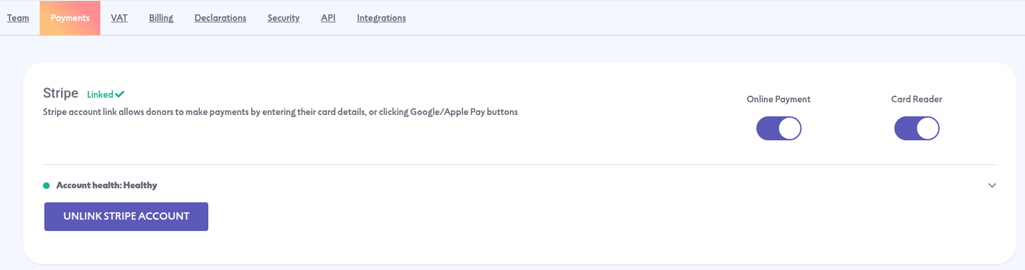
Switch on card reader payments. In the GiveTap portal, go to Settings > Payments. Next to Stripe, make sure Card Reader is switched on. If it's off, the reader can't take payments. (If you use Square, it has its own Card Reader switch on the same page.)
- Charge the reader. Use a USB-C cable or the dock. A full charge takes about 2.5 hours.
- Get the GiveTap Payments app on the reader. There's nothing to pair or register in the portal. The app runs on the reader itself, and our team installs it remotely. Email support@givetap.co.uk if it isn't on your reader yet. See Stripe S700 & S710 Terminals.
- Connect it to the internet using Wi-Fi, or Ethernet through the dock or a hub. The S710 can also use 4G (see below).
- Choose your campaign. The reader shows your QR + Card Reader campaigns, and works the same way as the mobile app: go to Settings > Switch Campaign and pick one. See GiveTap Payments – Mobile App.
- Check the donation amounts. The reader shows the donation amounts set in your campaign. To change the order, edit the campaign and set Amount order to Low to High or High to Low. Donors see the amounts in this order on the donation page and on card readers. For campaign settings, see Creating a QR + Card Reader Campaign.
- Take a test donation before your event, so you know everything works.
Turning on 4G (S710 only)
4G isn't switched on by default. To turn it on:
- Log in to your Stripe account.
- Open your Terminal Location settings and switch on cellular (4G) data.
The 4G data plan costs £7 a month. Stripe only charges it in months where the reader uses at least 5MB of data. The S700 doesn't have 4G.
Returning a hired reader
You pay the return postage, using Royal Mail 1st Class Signed For. For the return address and when to send it back, please contact support@givetap.co.uk.
Troubleshooting
- The reader won't take payments: check Card Reader is switched on in Settings > Payments.
- The GiveTap app isn't on the reader: email support@givetap.co.uk and we'll install it remotely.
- I can't see my campaign: check it's a QR + Card Reader campaign.
- The amounts are in the wrong order: change Amount order in the campaign.
- No internet: check the Wi-Fi, or try Ethernet through the dock. On an S710, check 4G is on in your Stripe Terminal Location settings. The reader keeps taking donations offline and sends them once it reconnects.
- The reader won't turn on: charge it with the USB-C cable or the dock.
- I haven't heard back about my hire: email support@givetap.co.uk.
Related guides
- Stripe S700 & S710 Terminals
- GiveTap Payments – Mobile App (includes pairing a WisePad 3)
- Tap to Pay
- Creating a QR + Card Reader Campaign
- Donor Fee Cover