
Community fundraising: set up a campaign, fundraisers and teams
What it does and who it's for
Community Fundraising lets your supporters raise money for you with their own fundraising pages. You create a campaign (an appeal or an event), and supporters sign up, set a goal and share their page. They can fundraise on their own or as part of a team. Donors give on the supporter's page or on the campaign page.
Who it's for: charity staff who run community appeals, challenge events and fun runs in the GiveTap admin panel.
Selling tickets for an event is covered in Selling tickets for an event and checking people in.
Before you start: set your community styles
Your account-wide community styles power your community home page and the supporter sign-up pages. Set these once.
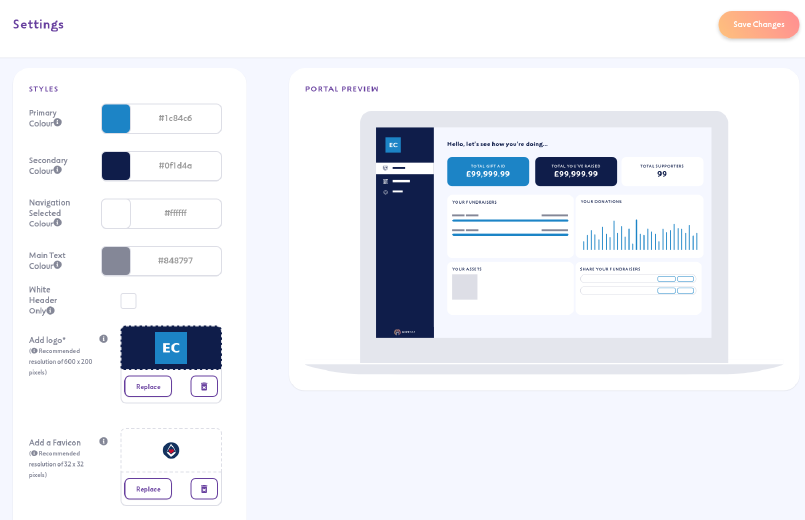
- Go to Community Fundraising > Settings in the side menu.
- Under STYLES, set your Primary Colour, Secondary Colour, Navigation Selected Colour and Main Text Colour. Tick White Header Only if you want a white header.
- Add your logo (recommended size 600 x 200 pixels) and a favicon (32 x 32 pixels).
- Choose your Font and button corner style.
- Further down, fill in Home Page Content (banner and title), choose a default campaign and add any tracking code.
- Check the PORTAL PREVIEW on the right, then click Save Changes.
Each campaign can also have its own look. See Change a campaign's look below.
Create a campaign
Creating a campaign is a 3-step wizard: Campaign Settings, Customisation and Upload Assets.
Step 1: Campaign Settings
- Go to Community Fundraising > Campaigns and click Create Campaign.
- Enter the campaign name, description and dates.
- Choose the Campaign Type: Appeal or Event. An Event has an EVENT DETAILS section for the activity, location, tickets and other event options (see the tickets guide).
- Check that Generate Supporter Fundraising Page? is ticked if you want each supporter to get their own page. It's ticked by default.
- Check that Allow Team Fundraising? is ticked if you want supporters to fundraise in teams. It's ticked by default.
- Under DONATIONS & GOALS, set:
- Campaign Goal: the total you want the whole campaign to raise. Tick Show On Page? to show it.
- Default Fundraising Goal: the goal each new supporter page starts with. Supporters can change it.
- Default Donation Amounts: the four amounts donors see (they start as £10, £25, £50 and £100).
- Enable Recurring Monthly Donations: lets donors give monthly. See Monthly donations.
- Enable Donor Covers The Fee Option: lets donors cover the fees. See Donor Fee Cover.
- Under URL & PRIVACY, enter the end of your Portal URL, for example summer-fun-run, and add your Privacy Policy Statement.
- Under SUPPORTER & REGISTRATION, add a Fundraising Goal Description if you like. To ask supporters extra questions, click Add Input fields next to Additional Registration Fields. These are shown during registration.
- Click Continue to Portal Settings.
Step 2: Customisation
- Under CAMPAIGN STYLES, set the Primary Colour, Header Background Colour, Header Text Colour and Main Text Colour, and add your logo.
- Upload a Banner Image (recommended 1900 x 650 pixels) and enter a Banner Headline.
- For an event, you can change the sign-up button text in Custom Event Sign Up Button Text.
- Upload a Supporting Campaign Video or Photo (recommended 500 x 500 pixels) and add a Supporting Headline.
- Fill in the rest of the page, such as FAQs and resources. The PREVIEWS panel shows how it will look.
- Click Continue to Digital Asset Upload.
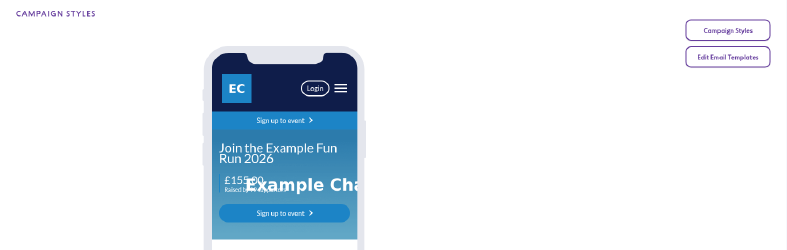
You can change these styles later. Click Edit Campaign on the campaign, then Campaign Styles. The phone preview shows how your page looks.
Step 3: Upload Assets
- Upload any digital fundraising assets for your supporters, such as posters or social media images.
- Use Adjust QR Position to place the supporter's QR code on each asset.
- Finish the wizard. You'll see Campaign Created with your campaign's web address. It ends in /f/your-charity/your-campaign.
What supporters see
Supporters open your campaign page and click the sign-up button. For an appeal, they register. For an event, they pick tickets first. Then they go through these steps:
- About you: name, contact details, address and any extra questions you added.
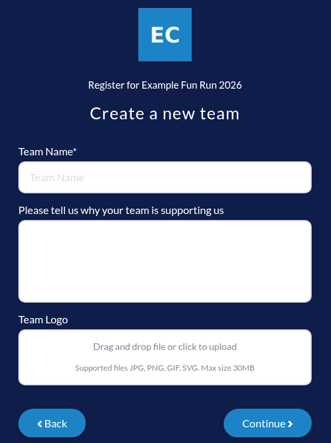
- About your team: if team fundraising is on, they choose Join an existing team or Create a new team. A new team has a Team Name, a reason for supporting you and a Team Logo.
- About your fundraiser: why they're supporting you (shown on their page), their page name and their fundraising goal.
- Set your password, so they can log back in.
Teams have no roles or captains. Any supporter can join a team or leave it. A team's total is the sum of all its members' totals.
To see your teams and their totals, open the public campaign page and look at the team leaderboard. The admin panel doesn't show teams, and Fundraisers, Data View and Reports cover individual fundraisers rather than teams.
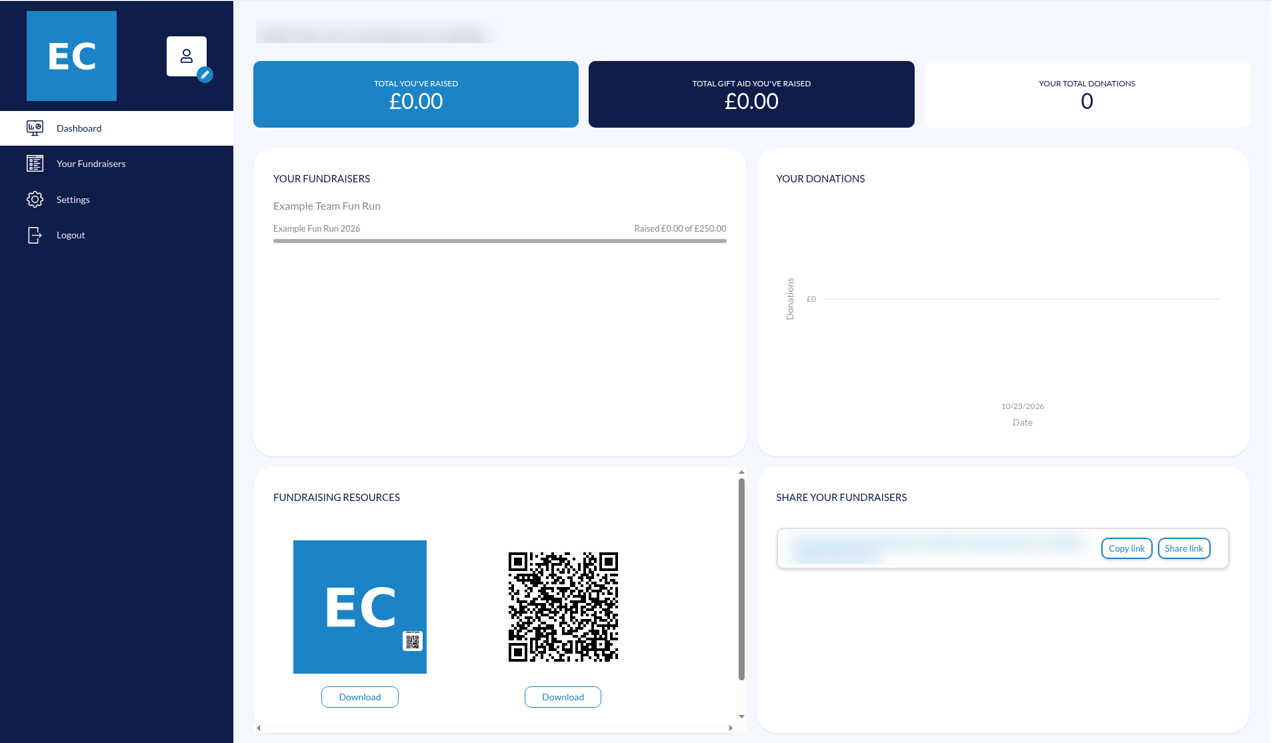
After signing up, supporters get their own dashboard with Dashboard, Your Fundraisers and Settings. The dashboard shows what they've raised, their Gift Aid, their donations, resources to download (including their QR code) and a link to share their page.
On events with a step-based activity, supporters can connect Strava in their own supporter account. Contact support if you're unsure.
Your charity gets a "Someone has registered for [campaign name]" email each time a supporter signs up.
What donors see
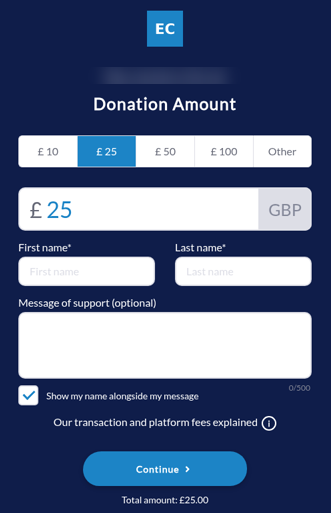
- The donor chooses an amount, or Other to type their own.
- They enter their name and can leave a message of support.
- They're asked if they want to add Gift Aid.
- They check a summary and enter their email.
- They pay by card and see a thank you page.
Managing your campaign
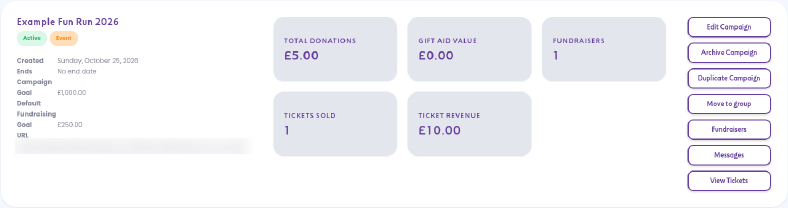
Go to Community Fundraising > Campaigns. Each campaign card shows its totals, and has these buttons:
- Edit Campaign: change details, styles, emails and assets (see below).
- Archive Campaign: take a campaign out of your active list.
- Duplicate Campaign: copy a campaign as a starting point for a new one.
- Move to group: put the campaign in a campaign group. See Organising campaigns into campaign groups.
- Fundraisers: see the supporters fundraising for this campaign.
- Messages: see messages of support left by donors.
- View Tickets: for events, see and manage tickets.
Change a campaign's look, emails or assets
Click Edit Campaign. From here you can use:
- Edit Campaign Details: change the settings from step 1.
- Campaign Styles: change this campaign's colours, logo and page content.
- Edit Email Templates: change the 8 emails supporters and donors get: Sign Up Confirmation, Admin-created Fundraiser Welcome, Admin-added Page Notification, Ticket Confirmation, Attendee Invite, Donation Receipt, Donation to a Supporter Page and Team Invite. Use the Tags menu to copy tags such as [FUNDRAISER_FIRST_NAME] or [CHARITY_NAME] into the email, click Preview to check it, then Save Changes.
- Edit Assets: upload or remove digital fundraising assets, and use Adjust QR Position.
Fundraisers
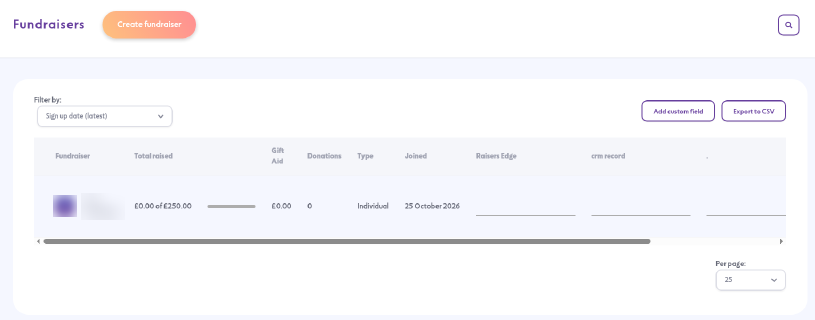
Click Fundraisers on the campaign card, or go to Community Fundraising > Fundraisers. You can:
- Click Create fundraiser to add a fundraiser yourself.
- Use Filter by to sort the list, for example by sign-up date.
- Click Add custom field to add your own column, for example a CRM record number.
- Click Export to CSV to download the list.
Messages of support
Click Messages on the campaign card to see messages donors left on the campaign's fundraising pages, with the fundraisers' replies. Use the filter at the top right to choose which messages to show. Hiding a message removes its text and reply from the page. The donation still counts.
Totals across all campaigns
Community Fundraising > Data View shows totals for your whole account, not one campaign: total raised, total Gift Aid raised, number of fundraisers, donations over the past 90 days, top fundraisers and top campaigns.
For downloadable data, go to Reports > Fundraiser & Ticket Reports, pick your campaigns and dates, then click Generate once or Schedule. See Reports: Export Your Data.
Troubleshooting
- Supporters can't see a team option: check Allow Team Fundraising? is ticked in Edit Campaign Details.
- Supporters don't get their own page: check Generate Supporter Fundraising Page? is ticked.
- The pages don't use my colours or logo: check both Community Fundraising > Settings (account-wide) and Edit Campaign > Campaign Styles (this campaign), and save each one.
- An email template shows a red dot or "Invalid tags detected": check the tags in that email match the ones in the Tags menu. If it still shows, contact support.
- Monthly giving or fee cover isn't showing to donors: open Edit Campaign Details and check the box is still ticked after saving.
- Anything else: contact support at support@givetap.co.uk.